AWS EC2 Restore Guide (eu-west-2)
This guide shows how to restore an EC2 instance from AWS Backup in the eu-west-2 Region, restore into the same VPC/Subnet, and reassign an Elastic IP.
Step 1 — Open AWS Backup Console
- Sign in to the AWS Backup Console.
- In the left-hand navigation, select Protected resources.
- Locate your EC2 resource to restore.

Step 2 — Select Recovery Point
- Filter by Resource type = EC2.
- Click the EC2 instance to view recovery points.
- Select the desired recovery point and click Restore.
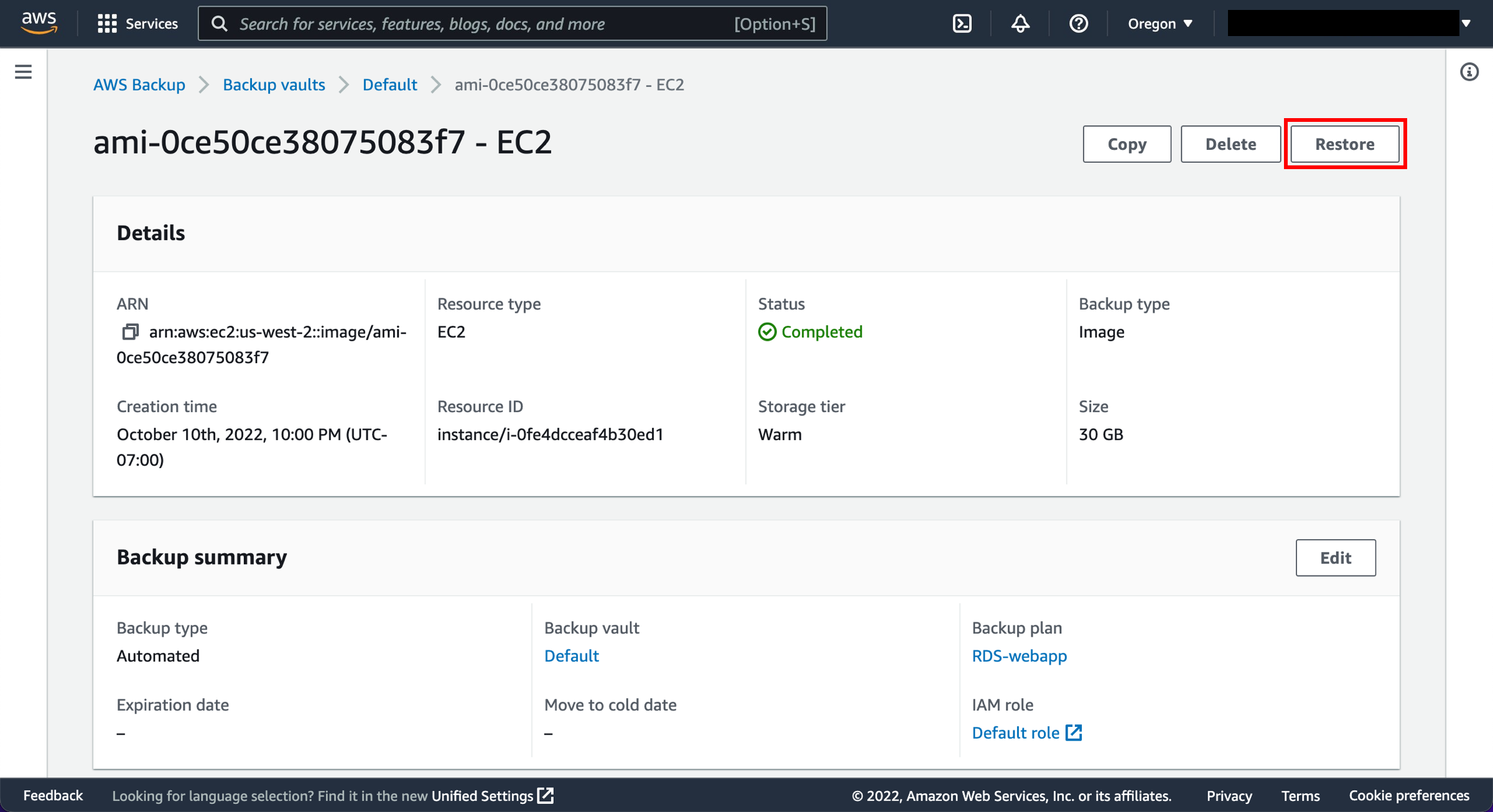
Step 3 — Configure Restore Settings
- Choose Restore type: EC2 instance.
- Select the same VPC and Subnet.
- Specify instance details: Instance Type, Key Pair, Security Groups.
- Choose the IAM role AWSBackupDefaultServiceRole or equivalent.
- Optionally copy tags and configure advanced options.
- Click Restore backup.
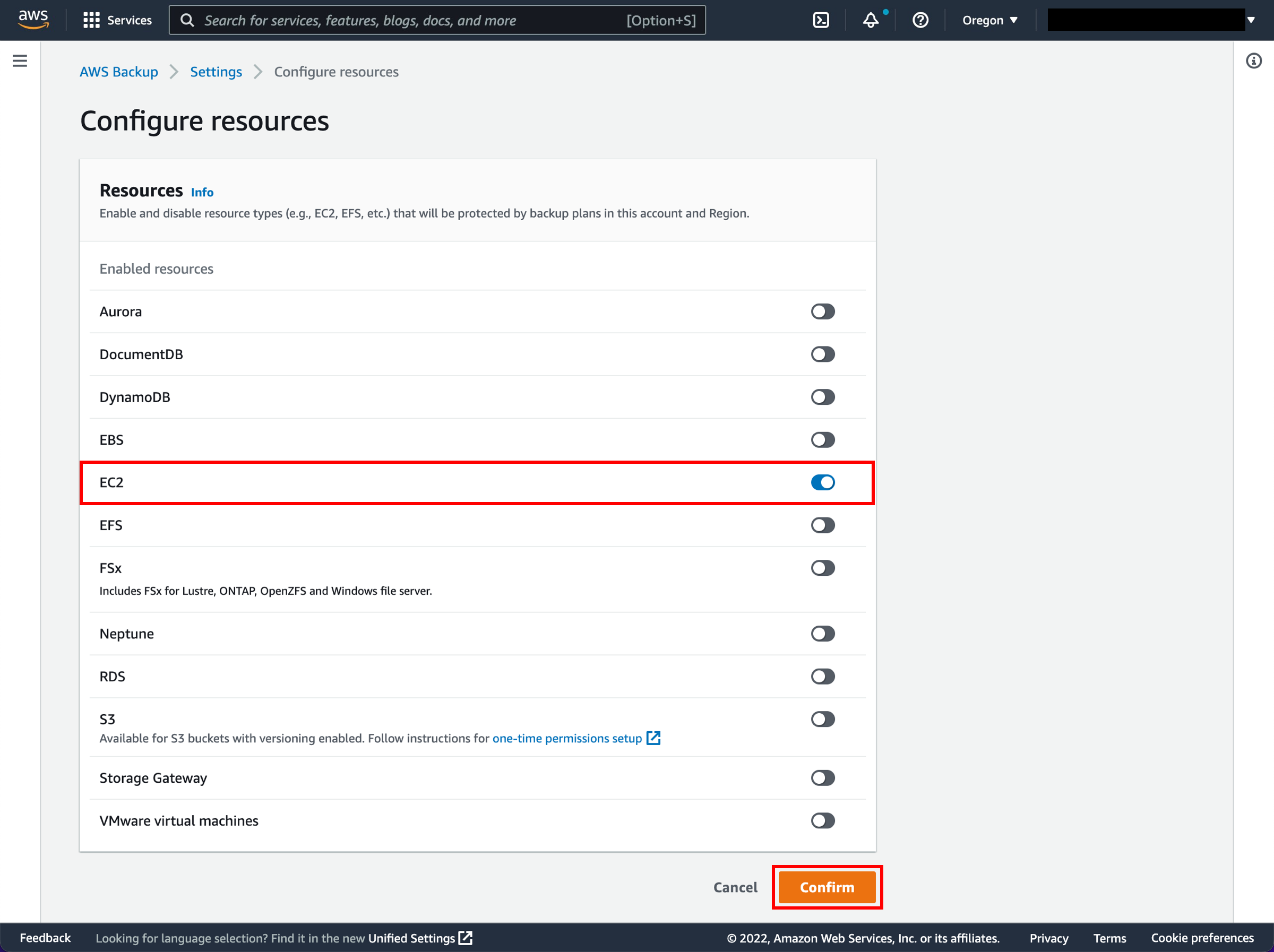
Step 4 — Monitor Restore Job
- Go to Jobs → Restore jobs.
- Wait for the status to change to Completed.
- If errors occur, check IAM permissions and resource limits.

Step 5 — Validate the Restored Instance
- Open EC2 Console → Instances.
- Locate the new restored instance (new Instance ID).
- Confirm: instance state, attached volumes, VPC, subnet, security groups.
- Connect via SSH/RDP and verify applications/data.

Step 6 — Reassociate Elastic IP
- Navigate to EC2 Console → Network & Security → Elastic IPs.
- Identify your EIP (Allocation ID:
eipalloc-xxxxxxxx).
- If associated with another instance, disassociate it.
- Click Associate address → select restored instance → confirm.
- Verify the public IP is correctly assigned.
If DNS pointed to the same EIP, no change is needed. If a new EIP was allocated, update DNS records accordingly.

Step 7 — Validation and Cleanup
- Confirm applications/services are functioning.
- Check inbound/outbound traffic rules and IAM roles.
- Terminate old instances if no longer needed.
- Release unused Elastic IPs to avoid charges.
✅ Your EC2 instance is now restored from AWS Backup in eu-west-2 and the Elastic IP has been reassigned successfully.